
Use this article to:
- Understand how the Custom Charging schedule works
- Learn how to edit daily slots and Target State of Charge
- Follow steps to copy one day’s schedule to other days
1. Open Custom Charging
- Open the tepeo app.
- Go to Charging from the menu.
When Custom Charging is on, you’ll see a banner like: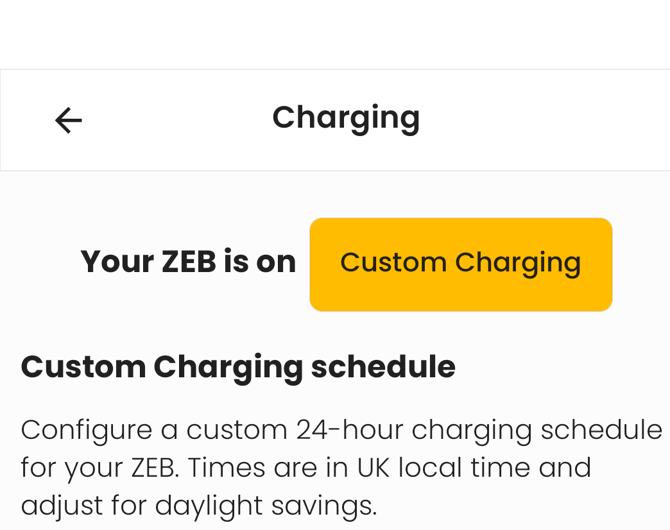
If this banner shows Basic Charging or Smart Charging tap the button to select Custom from the charging mode selection window.
2. Understanding the Custom Charging schedule
In the Custom Charging schedule section you’ll see:
- A Schedule strip with day tabs: M, T, W, T, F, S, S.
Tap a day (e.g. M for Monday) to view or edit that day’s schedule.
Each day is made up of time slots (rows) showing:
- Start–End time (e.g. 00:00 – 05:00)
- Target State of Charge (e.g. 80%)
3. Edit a day’s schedule
- In the Custom Charging schedule, tap the day you want to change (e.g. M).
- Tap Edit Monday (or Edit <day>).
You’ll see a list of slots, for example:
- 00:00 – 05:00 at 80%
- 05:00 – 00:00 at 0%
Add a new charging slot
- On the Edit <day> screen, tap the + button.
- In the Add charging slot window, set:
- Target State of Charge (e.g. 80%)
- Start time (e.g. 00:00)
- End time (e.g. 05:00)
- Tap Add slot.
- Tap Save once you are happy with the schedule
You only need to add charging slots for the periods where you want your ZEB to charge.
Adjust or remove a slot
- To change a slot, tap it, adjust Target State of Charge, Start, or End, tap Done when you are happy with the adjustments and then save.
- To remove a slot, tap it and use the delete slot option, then Save.
When you’ve finished editing that day, tap Save at the bottom. Tap Cancel to discard your changes.
Please note: The ZEB will aim to reach the Target State of Charge within each slot. It will stop charging when the slot ends, even if the target hasn’t been reached.
4. Copy one day’s schedule to other days
To quickly reuse a day’s setup:
- In the Custom Charging schedule, select the day whose schedule you want to copy (e.g. M).
- Tap Copy Monday (or Copy <day>).
- In the Copy Monday to… window, tick the days you want to copy to (e.g. Tuesday, Wednesday, Thursday, Friday, Saturday, Sunday).
- Tap Confirm, or Cancel to close without copying.
This copies all the time slots and Target State of Charge values from that day to the days you selected.
5. Key behaviour
- Custom Charging runs on a 7‑day repeating schedule.
- Times are in UK local time and adjust automatically for daylight savings.
- If you disable Custom Charging, your ZEB will follow the behaviour of your chosen automated charging style instead.